Inside Sales Idiot Nominee: Emma(?) from Silicon IT Hub PVT LTD

A quick one from another set of off-shore outsourcing bottom feeders. While any LinkedIn user knows that these are pretty much the only messages being sent on the platform these days, this one was too funny not to share.

Highlights include:

  1. Emma spelling her own name wrong. Probably a tell that this isn’t really Emma.
  2. Unnecessary use of the PVT LTD descriptor of an Indian registered company – don’t these people realize this has become a red-flag in business solicitation?
  3. LOUD NOISES and other Caps In Strange Places.
  4. The best line I’ve read today: “implement this techno name of designs” (referencing Responsive Design, which they claim to have been one of the first to implement).

Enjoy the stupidity of Silicon IT Hub PVT LTD (nofollow applied).

silicon-it-hub-pvt-ltd

Inside Sales Idiot Blowback from Techcello

So, it seems like the folks at Techcello aren’t happy about being called put for wasting other peoples time with their sales approach. Aside from getting another message overnight imploring me to delete the post, I’ve now started getting angry comment spam.

Here’s the details of today’s comment spam from “geoff@screwedup.com”.

image

Here’s where the mystery “Geoff” is coming from:

image

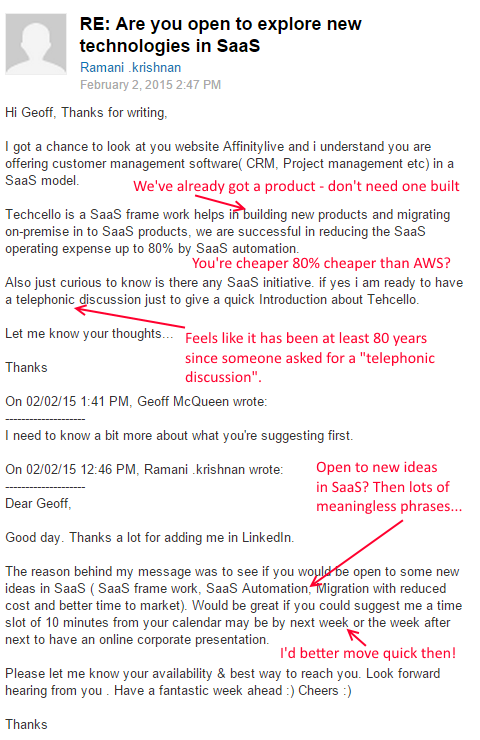
Inside Sales Idiot Nominee – Feb 2015: Ramani from from Techcello

While Groundhog day is too early in Feb to be declaring a winner, I couldn’t let this guy’s effort today go by. So funny for so many reasons, but my definite favorite was the suggestion of a “telephonic discussion” as the most exciting next step.

telephonic-discussion

Truth be told I’m kinda interested in what the hell a pitch to a SaaS company with a product already could possibly offer in terms of migrating their product from on-premise and what “SaaS automation” is. But I’m not interested enough for a Telephonic Discussion so I’ll just have to remain minutely curious.

Touching a Chord

24 hours ago I published a blog post reflecting on the wonderful renewal I’ve been witnessing on my quarterly trips back to my home town, Wollongong.

It seems that the post has really touched a chord.

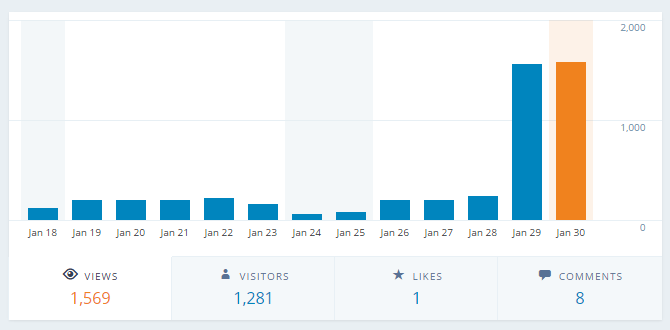
blog-post-views-24-hours

In that 24 hours, almost 3000 people have read the post. Aside from a few of my own Facebook friends, the readers have been come as a result of people sharing it with their friends. This amazing response – which has seen at times 360 people an hour reading the article – is a testament to how many people are still proud, passionate and optimistic about the future of their city.

Comments have come in from as far afield as Austria, and given a lot of the traffic has come in while folks in Australia would be asleep on a Saturday morning I can only assume there’s a lot of Wollongong ex-pats reading the post – which itself is an awesome thing and sign that people continue to care, deeply, wherever they’re living now. In the time it has taken me to capture that screenshot and publish this, another 200 people have read the post – it is 7am on a Saturday morning in Wollongong.

There’s been hundreds of likes and a bunch of re-shares of my original post on Facebook and Twitter, and ABC want to do an interview on Monday morning (which is thankfully going to be an hour before the Superbowl starts here).

Aside from the obvious sign that people really really care about Wollongong (which is great and very special), the most encouraging thing about all of this is the signal it sends to the City’s current leaders to keep going – keep improving, developing and driving the city forward, and don’t let a minority of whingers and small-minded negative folks with loud voices and too much time on their hands stop the city down from achieving its potential.

Inside Sales Idiot Award – Jan 2015: Omri from CommerceSciences.com

We’re only half way through January, but I’m going to be bold and make an early award for the Inside Sales Idiot Award for this month. The award goes to Omri from CommerceSciences.com, who seem to do something deceptively magical around e-commerce.

Omri did a bit better than Joe last month – he got our company name right – but after that it was fail all the way. Aside from being way to damn long for a cold email, Omri had a *lot* of confidence that CommerceSciences.com could really help us here at AffinityLive, if only I’d connect him to the person responsible for E-commerce sales – and then helpfully suggested it may well be our Director of Marketing.

This might well have been true, if we actually sold shit online through an online store. We don’t, and using ALL CAPS to call our your particularly bullshit claims and name-dropping Eric Schmidt doesn’t help: if you’re sending cold emails but can’t be bothers to spend the time even considering whether you’re wasting your recipient’s time because to do so would mean you actually spending some of yours first, you’ve told the recipient all they need to know – you’re a selfish, time-wasting arsehole who’s certain not to get that call you want.

Congratulations Omri – you win our Inside Sales Idiot of the month award.

inside-sales-fuckwit-january

Public/Private keys using Bitbucket and Sourcetree on Windows

After a recent laptop upgrade, I needed to reset my access to BitBucket from my new laptop, and figured this post might save some hassles for other folks trying to do the same.

Sticking with Windows for my OS when most other developers have moved to Mac might strike some readers as a strange thing: for me, it is a mixture of wanting the OS to be something I never think about (I care much more about the setup of my Chrome browser) as well as always being a bootstrapper (the equivalent Mac to my Samsung Ultrabook is another 30% more) means I’d rather stick with Windows (until I can really do without MS Office, at which point I’ll happily go Linux, but Google Docs isn’t there yet and being a CEO means a lot of spreadsheet and presentation work).

The problem, though, is being an outlier from a dev perspective means the instructions/process isn’t always so clear – now we know how Mac users have felt for 20 years!

SourceTree and PuttyGen/Pageant

When you’re using SourceTree you’ll probably be using it alongside the excellent Putty package (download it here; I recommend using the “Windows Installer” option half way down the page). When installed, this package includes a handful of utilities; the three we care about here are:

  • PuTTY: this is used for making SSH connections. You don’t actually need it for SourceTree things, but you’ll almost certainly need it for lots of other things.
  • Pageant: this is a background, resident app that handles the SSH handshake from your Windows apps, including SourceTree.
  • PuTTYgen: this is the key generation app for Windows which makes it easy to create public/private keys.

The process of getting SourceTree to work nicely with key based access is:

  1. Use PuTTYgen to create a public/private key pair. Save the private key to somewhere safe on your local machine.
  2. Select/copy the public key section (the bit in the top grey window of PuTTYgen when the key has been created) and paste it in as a new SSH key in your BitBucket Account page under SSH Keys (the URL will be something like https://bitbucket.org/account/user/YOURUSERAME/ssh-keys/)
  3. Each time you boot your machine, fire up Pageant and “Load” your private key from step 1 – this will then “authenticate” your push, pull, fetch and other remote requests against BitBucket.

SourceTree’s Coolest Feature on Windows – the Terminal

However, if you’re like me, you’ll quickly tire of having to always use the SourceTree UI – it can be really slow and clunky (thanks Java). In this case, you’ll want to use the “Terminal” option in SourceTree.

terminal-sourcetree

When you click on the “Terminal” option, you get a fairly fully featured Linux-like terminal right there on your machine. This terminal makes it easy for you to do things like pulls, pushed, checking out other branches, changing the permissions on a file to make it executable – everything you want to do at the Git command line, and a lot more.

The problem with this Terminal, though, is that it doesn’t get the benefits of Pageant’s private key access – if you try and do a push or a pull or anything else that requires authentication to BitBucket, you’re going to get an access denied situation.

Enabling SSH Key access from the Terminal

As mentioned, the Terminal is more than just a command line interface for Git – it has a lot of built in Linux functionality there (I haven’t explored/dug in to work out how much). However, because it is running as an emulated environment within Windows, but not really as part of it, you need to set up your own keys.

The process is as follows:

  1. Fire up the terminal by clicking on the “Terminal” button in SourceTree. It doesn’t matter which repository you launch the terminal from since we’re going to be affecting your whole terminal environment.
  2. Type in ssh-keygen -t rsa -C ‘your.email@address.com’ (obviously replacing the email address with your own account).
  3. Accept the defaults, and enter a passphrase if you want to be prompted to enter one each time you use the key.
  4. You’ll then need to copy the public key (located at C:\Users\YOURUSERNAME\.ssh\id_rsa.pub – right click and open it in Notepad) to your clipboard.
  5. Finally, you’ll need to paste the public key into your BitBucket Account page under SSH Keys (the URL will be something like https://bitbucket.org/account/user/YOURUSERAME/ssh-keys/).

Once you’ve done this, you’ll be able to run “git pull” and “git push” in your Terminal and interact with the BitBucket server.

Inside Sales Idiot Award – December 2014: Joe from Applause

We all get a lot of inbound sales prospecting email, and they’re much less of an intrusion than a call and kill less trees than the stuff the USPS stuffs into our mailboxes (ahem, Comcast and Amex). If it is an email that the sender actually thinks I’d care about and they’ve taken a few minutes to at least look at what we’re all about, I’ll give them the time to at least consider it, just as we hope our recipients do the same when we email them deliberately and carefully.

Unfortunately though, with the increased volume I’m seeing an increase in the quantity of idiots doing it, so I’m going to start a regular series call the the “Inside Sales Idiot Award” to showcase the best example of stupidity each month.

In the first month of the series is an email from Joe at Applause, a company that helps you test mobile apps or something. Anyway, Joe sent me an awesomely shit email where he didn’t bother to change the name of the company in the intro. Compounding the obvious fail of this approach, he then correctly concluded that people are busy and have other stuff going on in the run down to the holidays, but still suggested we set up a call, and finished it with a prize winning confident line about being sure we’ll be happy we did.

Anyway, here’s Joe’s ISI Award winning effort for December.

inside-sales-fuckwit-december

Removing Mistakenly Synced Contacts on Android

I’ve been an Android fan and user since the days of the HTC Hero (which ended up in the hands of the Taliban after being lost in a Melbourne cab – but that’s another story), but one thing that has caused plenty of frustration over the years is how the contacts address book gets bloated.

In a device who’s prime function is communication, having an address book that is 10x bigger than it should be causes massive performance problems – from creating a new SMS/email message through to making a call from the dialer, having too many contacts becomes a daily pain in the butt.

My main address book in Google Apps is already pretty large, with a bit over 3000 contacts in it. To help with using Voice, and now Hangouts as a browser extension, I’ve also set up a sync where contacts created in my Apps account are synced (via Xapier) across to my personal Gmail account.

Having gotten the new Nexus 6 last week, I set up my accounts and mistakenly left the “sync” option on for Gmail – the result was a doubling up of contacts. Android is pretty clever at merging the view of them, but it doesn’t stop there being multiple contacts in the actual database on the phone.

Now at close to 7000 contacts, things are getting a bit bloated/heavy, but wait, it gets worse.

Install the LinkedIn app? Great, now you get a contact for each of your connections (another 4000 there). Facebook seems to do the same (1200 or so there), and then add Skype and you’ll get another contact for each of your Skype connections. I don’t use Whatsapp anymore because it destroyed my contacts list, creating what seemed like a new Whatsapp contact for every other apps contact and grinding my address book and compose processes to a halt.

All of this, combined with some of those apps seeming to multiple contacts, left me with a contact list of over 38,000 contacts – 10x more than I actually need (or want).

The first step was to do what I should have raced to do when setting up my phone (and what Google should make an option with checkboxes at the time of connection) – disabling my @gmail.com account sync.

Unfortunately, though, while disconnected, it didn’t actually remove the contacts from my phone (I can see why they’d make that choice – deleting is pretty final), and with all the other shit listed above, I really wanted to wipe the contact database clean and start again.

One (nuclear) option is to do a factory reset of your phone and start again (being quicker at the unsync) and choosing not to do address book synchronization for apps like LinkedIn and Skype in the first place. I didn’t really fancy having to go through the effort of setting up Google Authenticator codes, or having to re-setup everything from icons to apps, so this wasn’t appealing.

The better option is to use a great little free app called “Delete Contacts“. This app does what it’s name suggests – it deletes all of the contacts on your phone, either group by group or en-masse.

wpid-screenshot_2014-12-19-11-42-47.png

Since most of the apps that create extra contacts are just for consuming contacts (LinkedIn) or using a special purpose app to contact them (Skype), you don’t care too much about consequences of doing a delete on these, but your Google address book is more two-way.

I don’t know if using Delete Contacts would delete things from Google’s address book in the cloud, but didn’t want to take a chance. The steps to “unsync” changes from your phone back up to Google are:

  1. Open the “Contacts” app (this is in Lollypop – earlier versions have different paths, like going via “Settings”).
  2. Click on the menu option in the top right.
  3. Choose “Accounts”.
  4. Choose “Google”.
  5. Choose the account you want to unsync
  6. Untick the checkbox next to “Contacts”
  7. Repeat steps 5 and 6 for each Google account.

Once this is done, fire up Delete Contacts app. The first two options are “read only”, but choose the option half way down the screen called “Delete Contacts”. It will then delete all of your contacts.

You’ll probably need to wait a while (mine took most of the time this blog post took to write), and then go back into the section above where you unticked the Sync process and turn on just the account(s) you want to sync.

I was hoping that this would be enough, however, the method of deleting contacts we’ve followed here is a bit brutal. Basically, Android appears to store a “last modification” timestamp, and when the sync process runs it only fetches new contacts via Google’s API that were modified after that timestamp.

The solution, though, is pretty easy – you just need to modify all of your contacts, which is easier than it sounds.

  1. Go into Google Contacts.
  2. Create a new Group (link is in the left hand nav at the time of writing, below all the other groups)
  3. Call it something like “Test”.
  4. Then tick the checkbox in the top to select all the contacts on the page (100 at a time).
  5. Click on the “Groups” icon, and then select the “Test” group you created in Step 3.

google contact add to group

Do this for each page of contacts (unfortunately there’s no “select all from all pages” option with Google Contacts). Once you’re done, you can delete the “Test” group you created in Step 3 above.

The reason you’re doing this is because by adding the contacts to this test group, you’ll have updated their “modified” timestamp, which means your phone will then download them as part of it’s normal sync. Within a few minutes (over wifi) you should see a crisp, clean new address book and faster responsiveness when you try and make a call or send a text message. Enjoy!

Real public holidays in the United States

As an Aussie who’s relatively new to the US, I’ve been really confused on more than one occasion about the seemingly “optional” nature of US Public Holidays. While there seems to be something every month that is enough to shut down the Post Office and occasionally the bank, there are actually only a few of these public holidays where it is customary for “normal businesses” to close for the day.

Of course, getting a list of the “real” holidays vs the government worker holidays is a bit like that line from “A Few Good Men” when Lt Kaffee (Tom Cruise) asks Cpl Barnes (Noah Wyle) where the mess hall is in the official Marine Corps manual: “I guess I just followed the crowd at chow time, Sir”.

Of course, this creates a few problems if you’re trying to manage a team and you don’t know where to lead them at chow time. So, here’s the list I’ve been able to compile of the “real” holidays in the US in the process of building AffinityLive:

Yep, that’s it. President’s Day, Martin Luther King Day, Columbus Day, Veteran’s Day and all manner of other magic days aren’t days where you’d call your lawyer, accountant or other professional/office type business and expect to get a “we’re not here – it is a holiday” response.

Social Network Birthdays – Facebook still King, but LinkedIn Rising

Last weekend I celebrated my birthday the only way a tech guy should – by dropping off the grid and enjoying the great outdoors, mostly sans internet connection.

When I came back online I was greeted by that familiar and welcome scene – lots of messages from family, friends and the occasional distant acquaintance wishing you happy birthday.

While Facebook has long been king of the birthday message, I was surprised to see just how many birthday messages I received this year via LinkedIn. While last year I received one birthday message via LinkedIn, this year I got 22. For a professional social network, and for a person who’s birthday falls on Labor Day (a public holiday here in the US) it was really surprising to see the difference a year makes.

Anyway, here’s the split in graphical form. It will be interesting to see what happens next year.

birthday-social-messages